SurgeryWeb Support Centre
How to Create and Publish a News Post
Adding a News Post
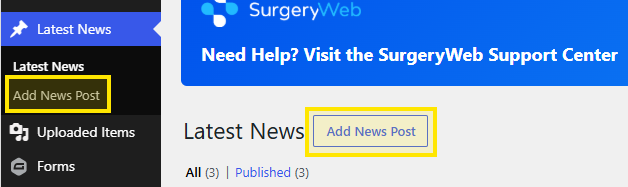
If you would like to share any news, such as your latest Patient Newsletter, click Latest News from the Dashboard, then select Add New Post.
Alternatively, you can use the menu on the left-hand side and navigate to:
Latest News > Add News Post
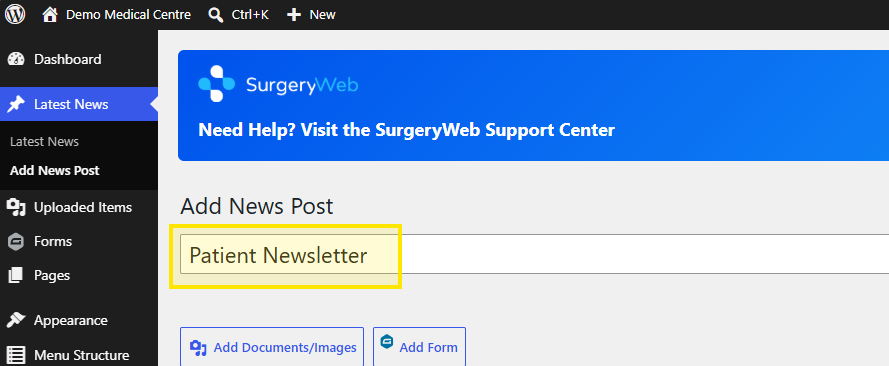
Add the title of your news post in the Add News Post title box.
Then add your content to the main editor box.
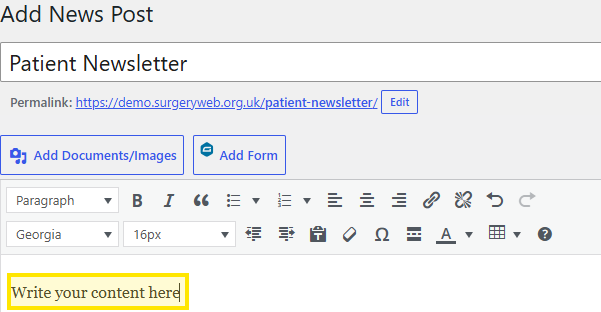
You can also insert an image or add a link to a document by clicking Add Documents/Images.
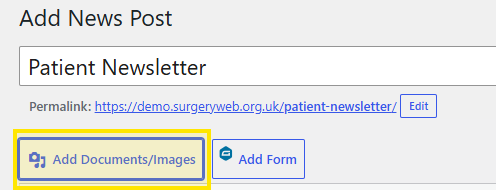
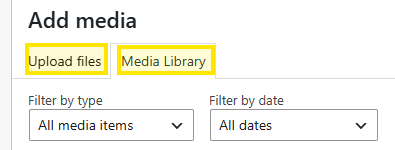
When adding media, you will have two options:
- Upload Files – use this to upload a new document or image.
- Media Library – use this to select a document or image that has already been uploaded to your website.
Images can be inserted directly into the news post.
Documents are added to the news post as clickable links, which patients can select to open or download the document.
Adding a Video
To insert a video into your post, for example a YouTube video, simply copy and paste the video link directly into the editor box. The video should then be embedded automatically within your post.
Publishing Your News Post
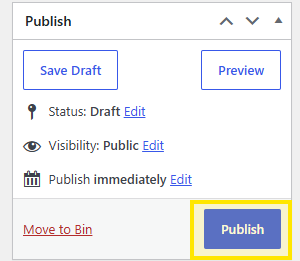
Once you have reviewed your content and are happy with it, click Publish on the right-hand side of the screen. This will publish the news post to your website.
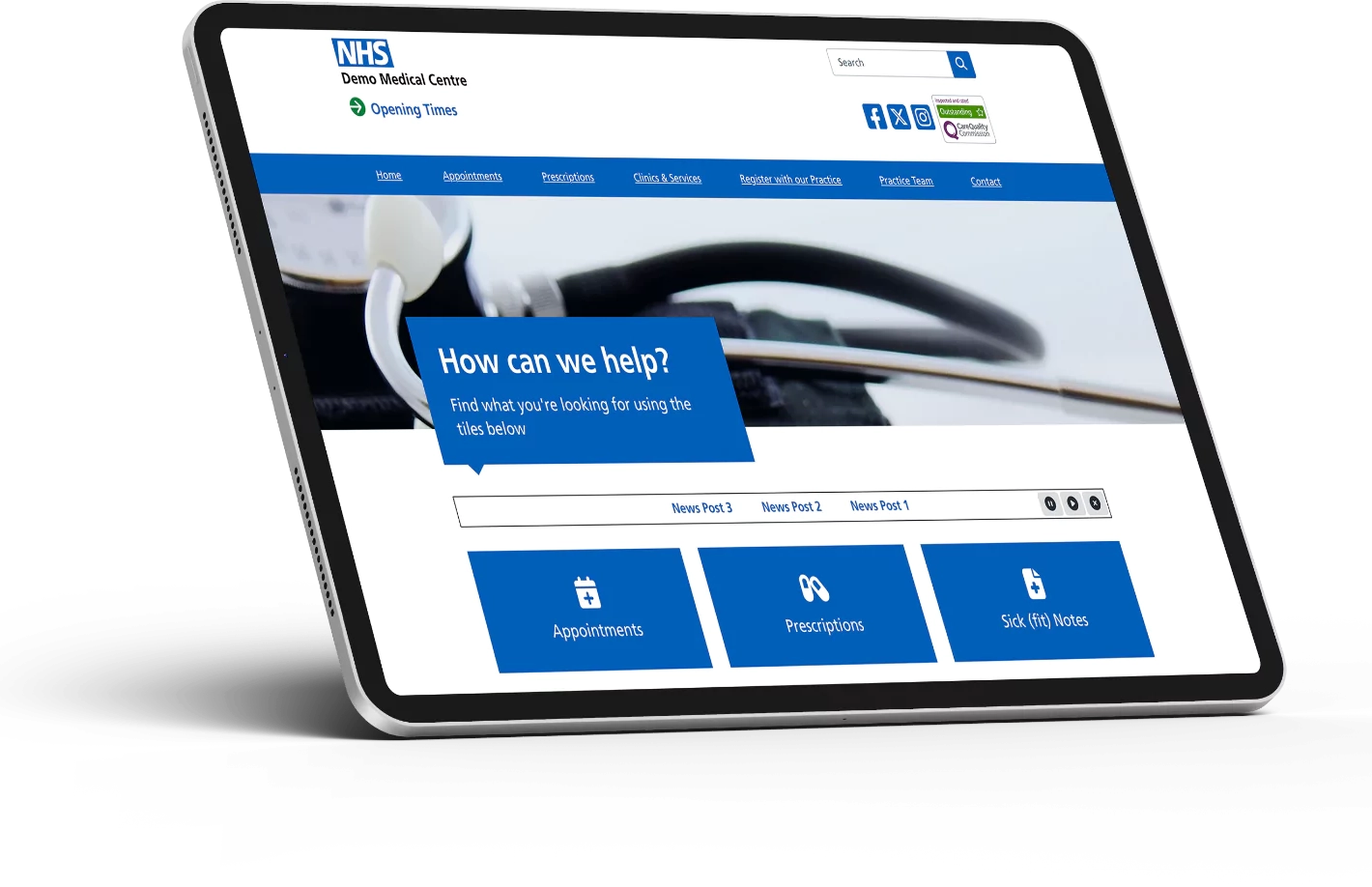
After being published, your News Post will appear in the Latest News section on your main page.
If you have chosen to display your Latest News in the Scrolling Ticker, the News Post will also appear there.
Was this helpful? Give it a thumbs up!