SurgeryWeb Support Centre
Viewing and Editing Files in the Media Library
Once you have uploaded an image or document, click it in the Media Library to view its details. The options available depend on the type of file. You can edit its details, download it or permanently delete it.
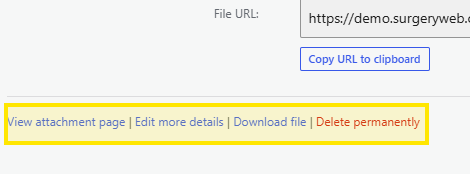
You can also select Copy URL to copy a direct link to the file. For example, you can use this link to add a document to an article or share it in a text message.

Editing an image
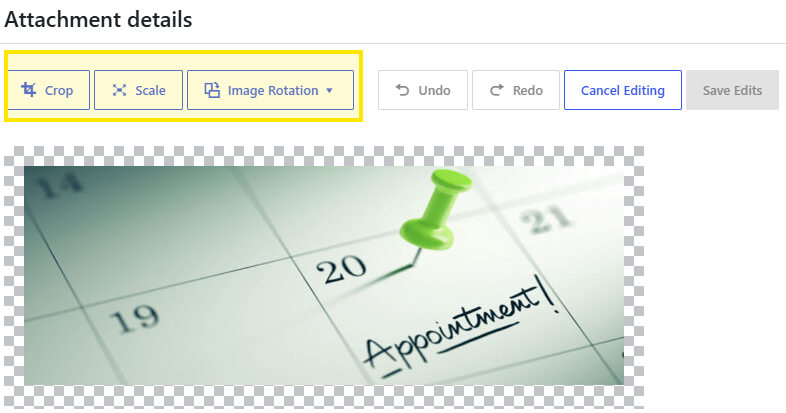
To crop, scale or rotate an image, select Edit Image.

- Crop removes part of an image so you can focus on the area you want to show.
- Scale changes the size of the whole image while keeping all of it visible.
- Rotate turns an image if it appears sideways or upside down.
Crop an image
Select Crop, then drag the handles to choose the area you want to keep.
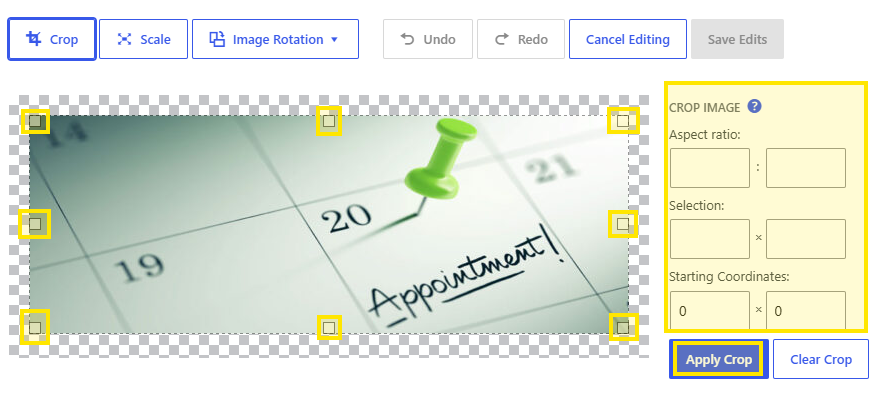
When you are happy with the selected area, click Apply Crop, then Save Edits. The Save Edits button will turn blue once you have made a change.
Scale an image
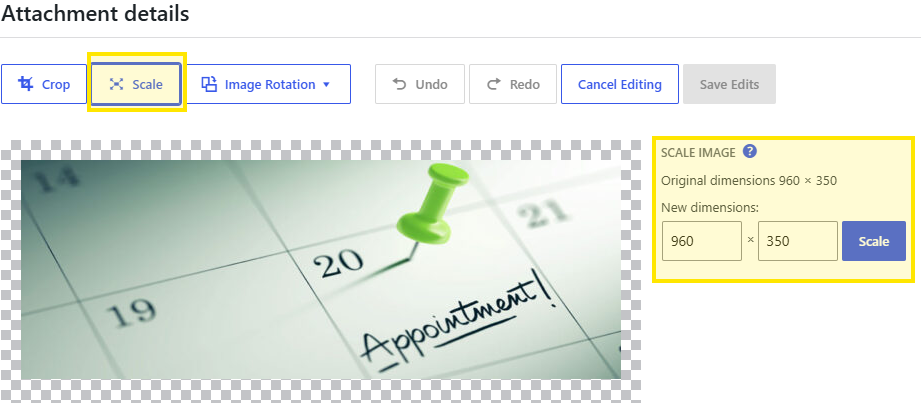
Select Scale and enter the new dimensions. Click Scale to apply the change. If you are not happy with the result, select Restore Original Image to return to the original image.
Rotate or flip an image
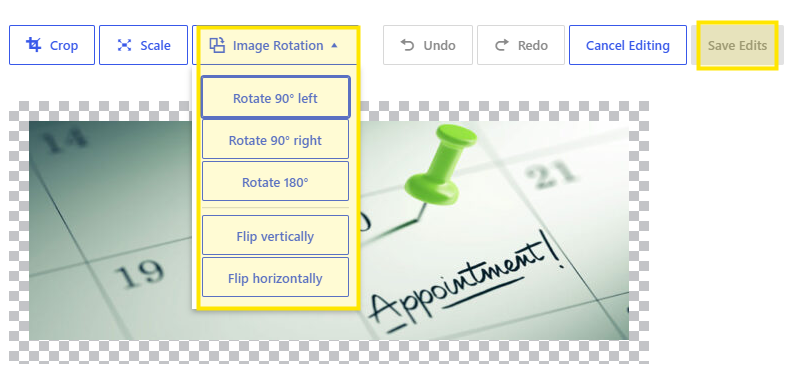
Select Image Rotation to turn the image 90° left, 90° right or 180°. You can also flip it vertically or horizontally. Use Undo if you make a mistake. When you are happy with the result, click Save Edits.
Attachment details
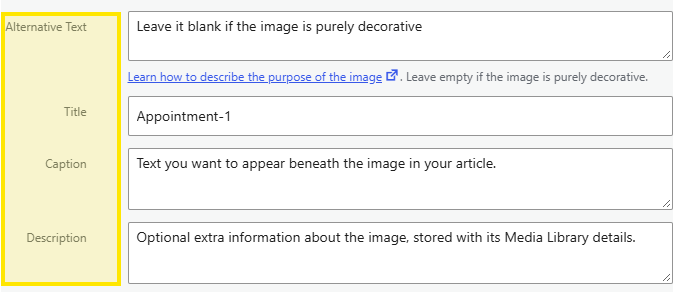
You can also add information about an image or a document in its Attachment Details:
- Alternative Text: Describe what the image shows or communicates for people using screen readers. Leave this blank if the image is purely decorative.
- Title: The name used to identify the image in your Media Library. You can change this if needed.
- Caption: Text that can appear beneath the image in an article.
- Description: Optional extra information stored with the image in your Media Library.
Was this helpful? Give it a thumbs up!