SurgeryWeb Support Centre
Manage Feature Tiles
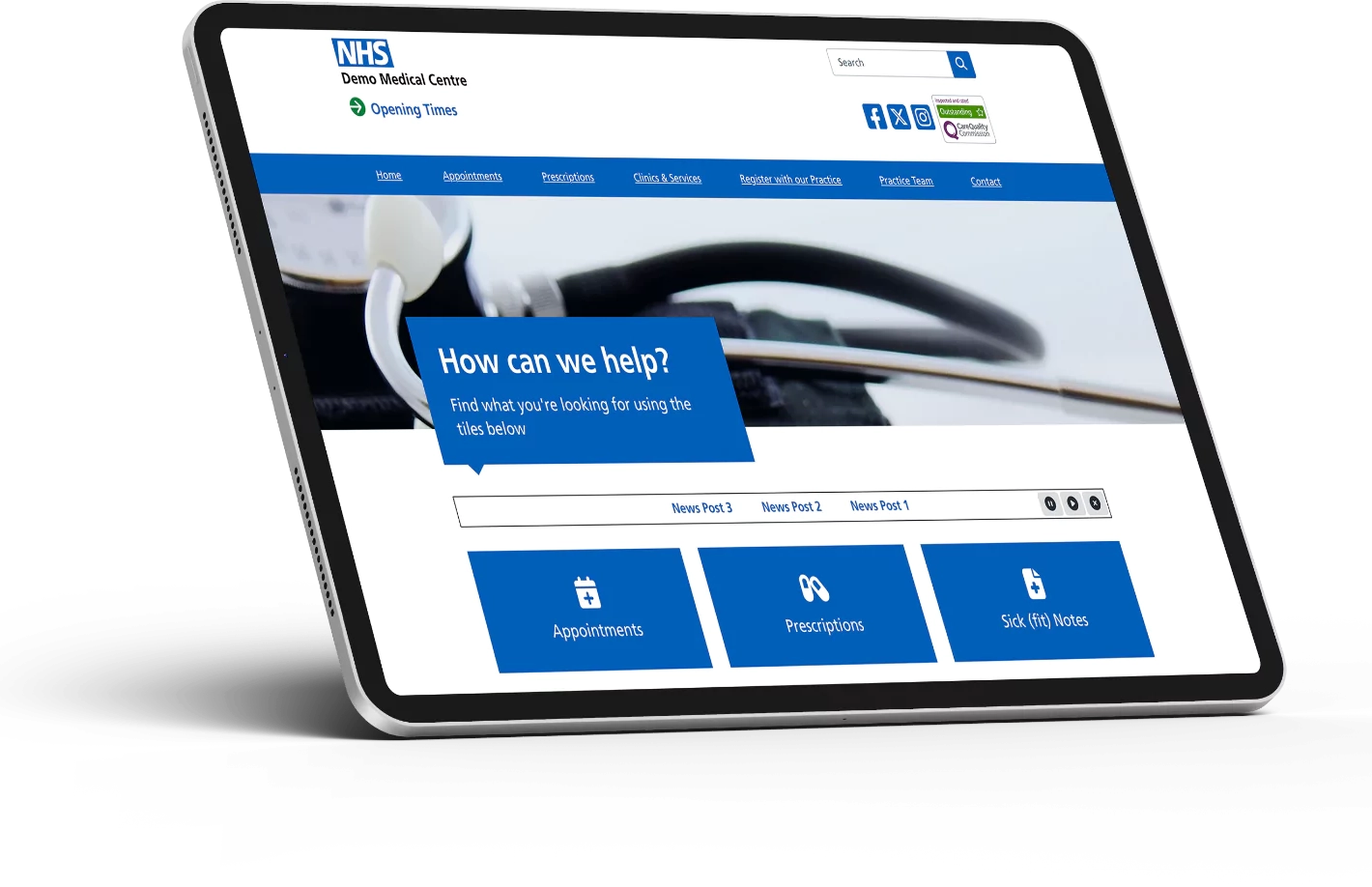
Feature Tiles are the large clickable tiles displayed on your website.
They can be used to direct visitors to important pages, forms, online services, external websites and other useful information.
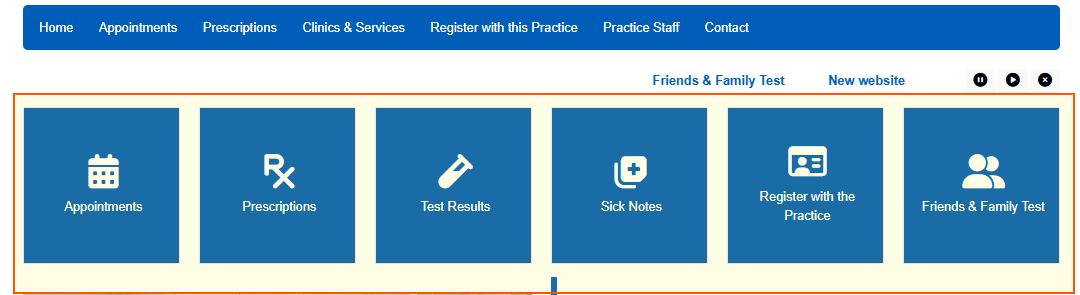
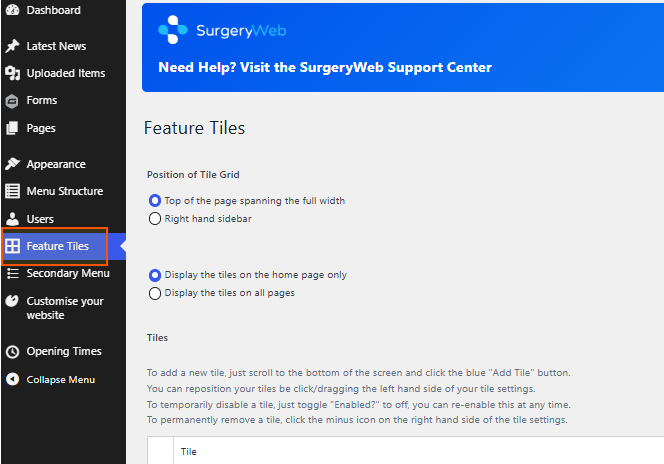
To manage your Feature Tiles, select Feature Tiles from the left-hand menu.
Choose where your Feature Tiles appear
At the top of the Feature Tiles screen, you can choose where the tile grid is displayed.
Under Position of Tile Grid, select:
- Top of the page spanning the full width – displays the tiles across the top of the page.
- Right hand sidebar – displays the tiles in the sidebar.
You can also choose whether the tiles are displayed:
- on the home page only
- on all pages
Edit a Feature Tile
Each tile has its own settings which control how it looks and what happens when a visitor clicks it.
Tile title
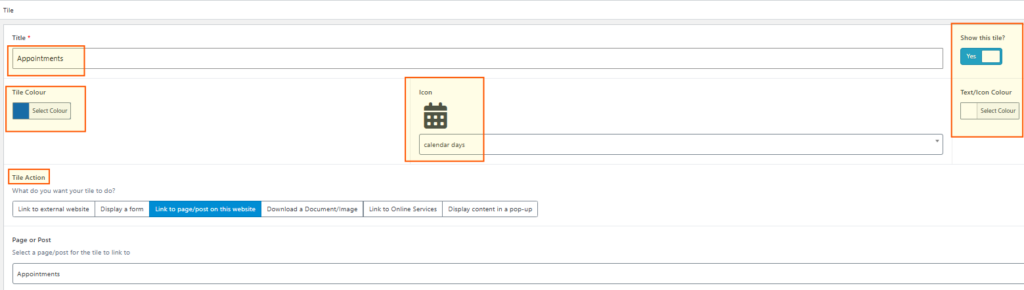
Enter the name you want displayed on the tile in the Title field.
For example: Appointments
Use the Show this tile? option to choose whether the tile is currently visible on your website.
This is useful if you want to temporarily hide a tile without deleting it.
Change the tile colours
You can customise the appearance of the tile using:
- Tile Colour – changes the background colour of the tile.
- Text/Icon Colour – changes the colour of the tile text and icon.
Select Select Colour beside the setting you want to change and choose your colour.
Choose an icon
The Icon section lets you choose the icon displayed on the tile.
Select the icon field and choose an appropriate icon from the available options.
For example, an appointments tile could use a calendar icon.
Choose what the tile does
Under Tile Action, choose what should happen when someone clicks the tile.
The available options are:
- Link to external website – takes the visitor to another website.
- Display a form – opens one of the forms available on your website.
- Link to page/post on this website – takes the visitor to another page or news post on your website.
- Download a Document/Image – allows the visitor to open or download a document or image.
- Link to Online Services – links the tile to an Online Services option.
- Display content in a pop-up – displays information in a pop-up without taking the visitor away from the page.
The fields shown underneath will change depending on the action you select.
Change the order of your tiles
Tiles can be repositioned by clicking and dragging the numbered handle on the left-hand side of each tile.
Drag the tile up or down to the required position. The number shows its current position in the tile order.
Drag the tile up or down until it is in the position you want.
The order shown here determines the order in which the tiles appear on your website.
Temporarily hide a tile
If you do not want a tile to appear but may want to use it again later, change Show this tile? to No.
This keeps the tile and its settings but removes it from view on the website.
Delete a tile
To permanently remove a tile, use the minus icon on the right-hand side of the tile settings.
Only delete a tile if you are sure it is no longer required.
Add a new Feature Tile
Scroll to the bottom of the Feature Tiles screen and select the blue + Add Tile button.
Complete the tile settings in the same way as an existing tile:
- Add a title.
- Choose whether the tile should be shown.
- Select the tile and text/icon colours.
- Choose an icon.
- Select the required Tile Action.
- Complete the additional options shown for that action.
Save your changes
Once you have finished making changes, click Update in the Publish box.
The Publish box can be positioned near the top or bottom of the screen. You can use the arrows in the top-right of the box to move it up or down.
Was this helpful? Give it a thumbs up!