SurgeryWeb Support Centre
Secondary Menu
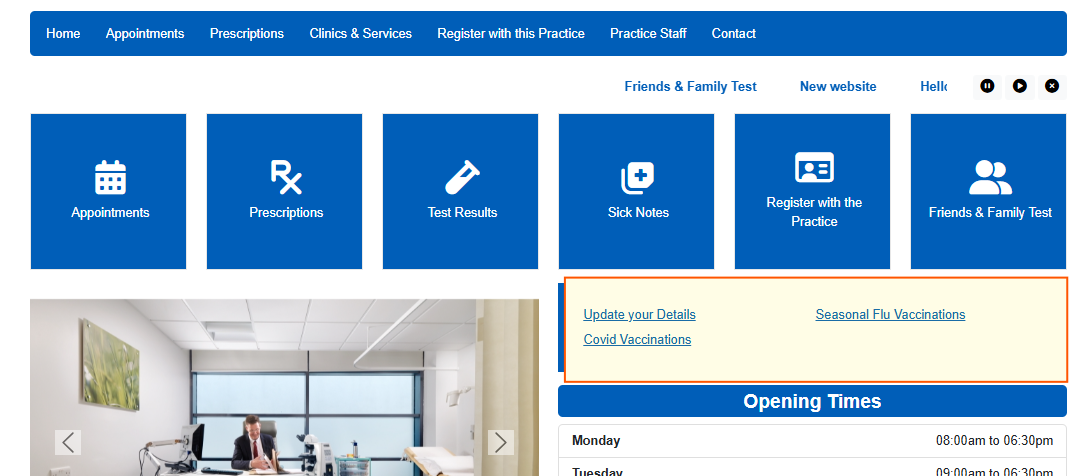
The Secondary Menu allows you to display useful links on your practice homepage, giving patients quick access to important information and services.
For example, you can add links to:
- Update Your Details
- Seasonal Flu Vaccinations
- Covid Vaccinations
How to Add or Edit Secondary Menu Links
- Log in to your SurgeryWeb dashboard.
- Select Secondary Menu from the left-hand menu.
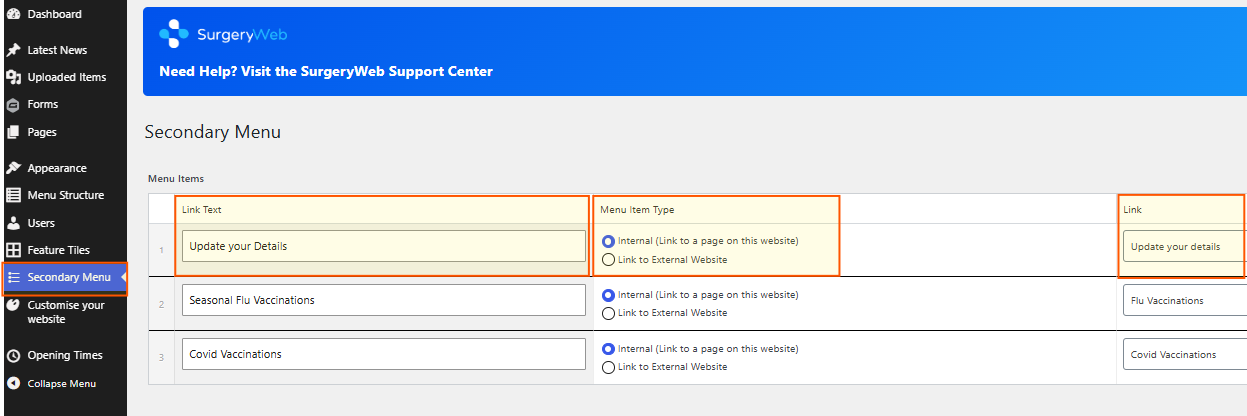
- Under Link Text, enter the wording you want to display on your homepage.
- Under Menu Item Type, choose:
- Internal – Link to a page on your practice website.
- External – Link to another website.
- Under Link, select the relevant page or enter the website URL.
- Click Publish or Update on the right-hand side to save your changes.
Adding More Secondary Menu Items

- Click Add Row at the bottom right of the menu items.
- A new blank row will appear.
- Enter the Link Text, select the Menu Item Type, and choose or enter the Link destination.
- Repeat these steps to add more links.
- Click Publish or Update to save your changes.
Tip: Keep link titles short and clear to help patients find information easily.
Was this helpful? Give it a thumbs up!