SurgeryWeb Support Centre
Manage your website menu
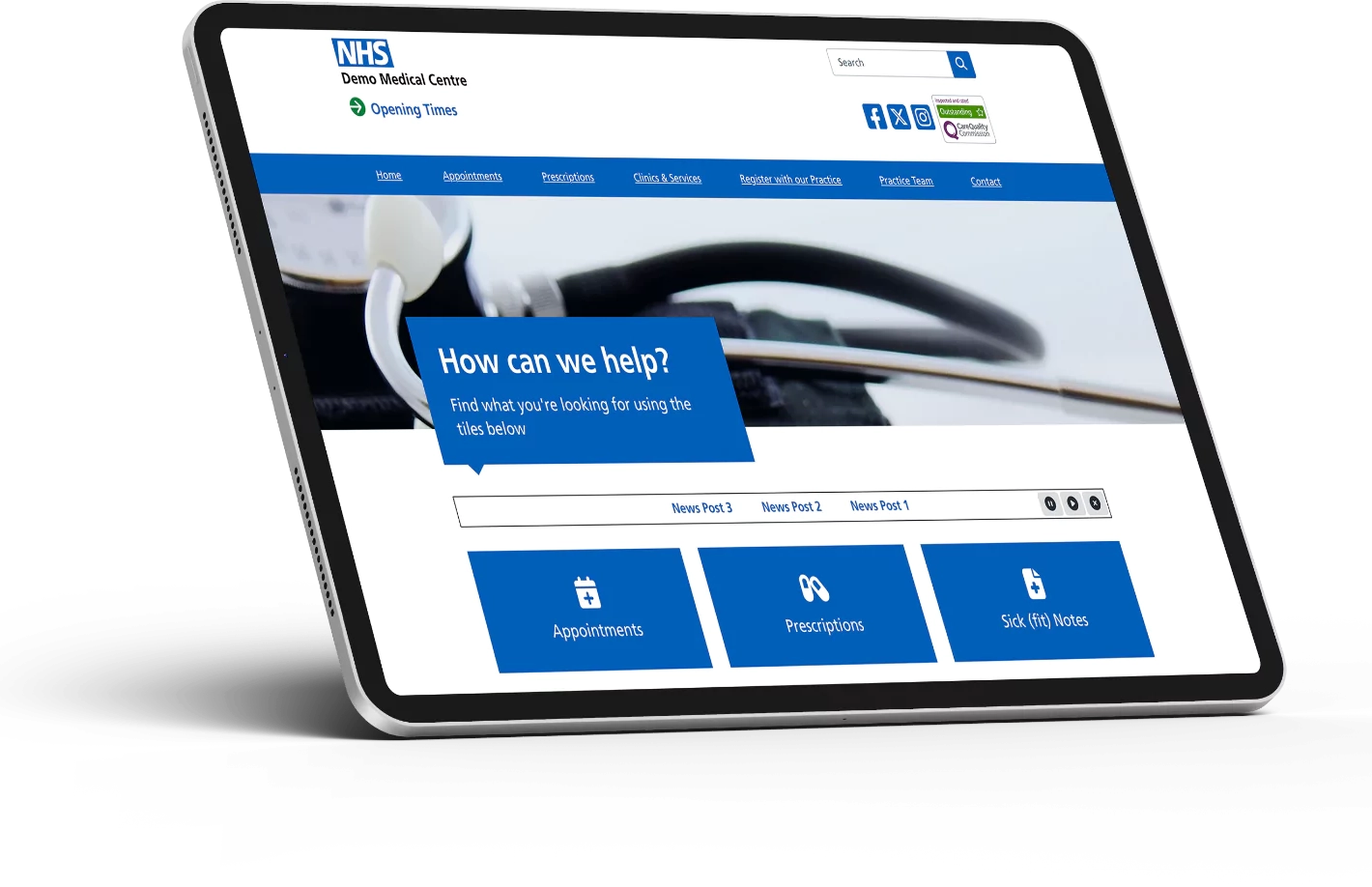
Your website menu helps visitors navigate to the main pages on your website.
You can add pages to the menu, remove items, change their order and create drop-down menus.
Open the menu
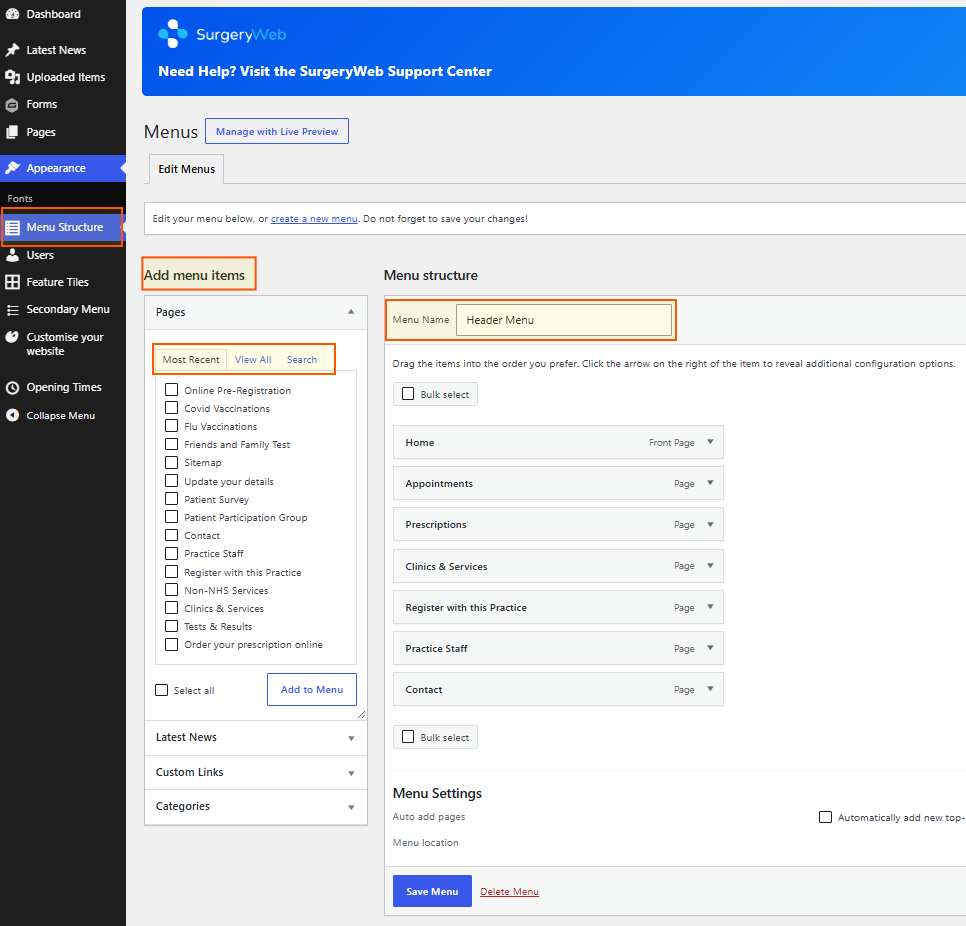
From the Dashboard:
- Go to Appearance.
- Select Menu Structure.
- The Header Menu will be displayed under Menu structure.
Add a page to the menu
Under Add menu items on the left:
- Find the page you want to add. You can use Most Recent, View All or Search to locate it.
- Tick the box next to the page.
- Click Add to Menu.
The page will be added to the bottom of the Menu structure.
Change the order of menu items
- Click and drag a menu item up or down to change where it appears in the website menu.
- The order shown under Menu structure is the order visitors will see on the website.
Create a drop-down menu
To place a page underneath another menu item:
- Click and drag the page underneath the main menu item.
- Move it slightly to the right until it appears indented.
- Release it.
The indented page becomes a sub-menu item and will appear in a drop-down menu beneath the main item.
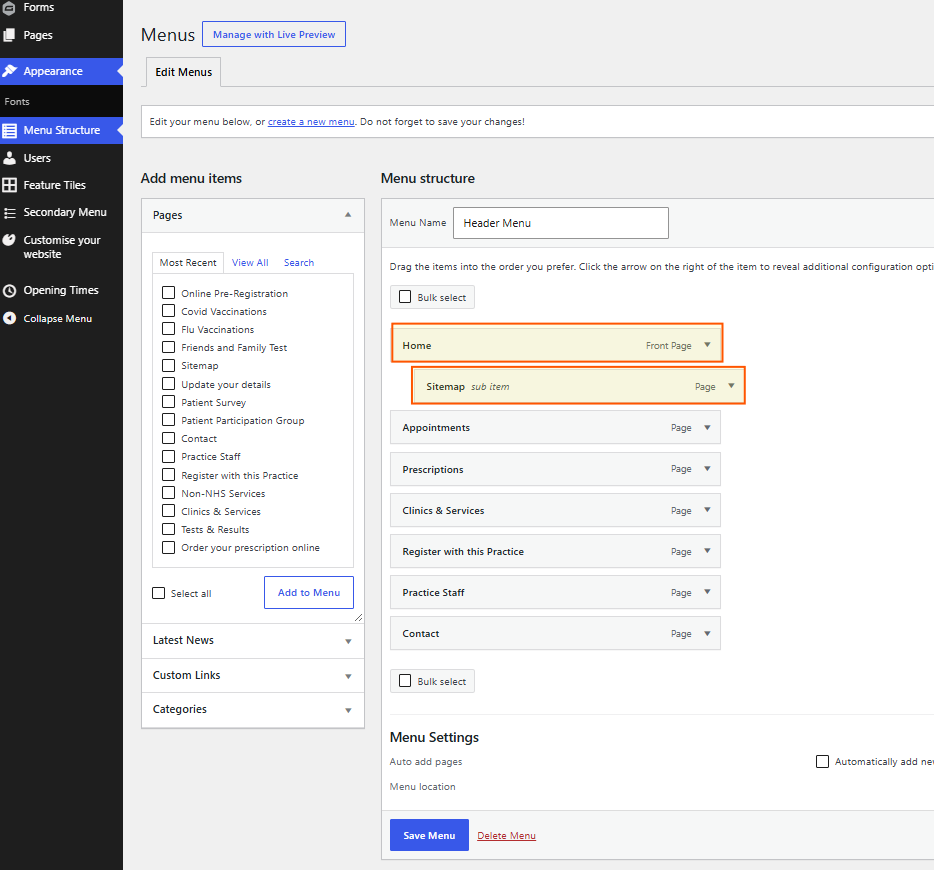
You can drag it back to the left at any time to make it a main menu item again.
Rename a menu item
Changing the menu name does not change the title of the page itself.
- Click the arrow on the right-hand side of the menu item.
- Change the text in Navigation Label.
- Click Save Menu when finished.
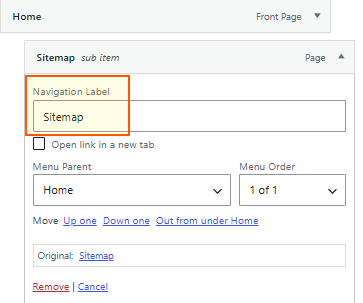
This can be useful when the page title is too long for the website menu.
Remove an item from the menu
Removing an item from the menu does not delete the page.
- Click the arrow on the right-hand side of the menu item.
- Click Remove.
- Click Save Menu.
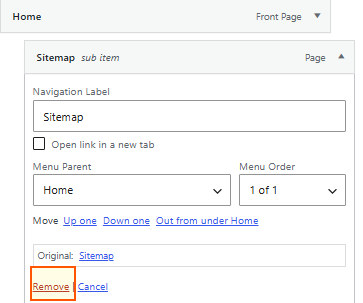
The page will remain available in your Pages but will no longer appear in the menu.
Add a custom link
You can also add a link to another website or a specific web address.
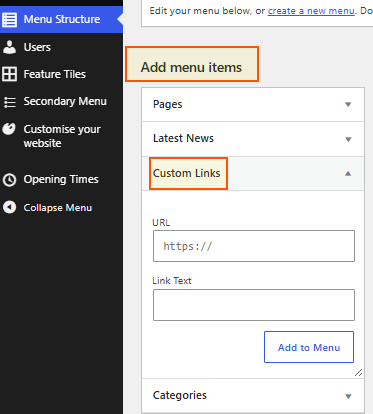
- Open Custom Links under Add menu items.
- Enter the full web address in the URL field.
- Enter the text you want visitors to see under Link Text.
- Click Add to Menu.
- Drag the new item into the required position.
- Click Save Menu.
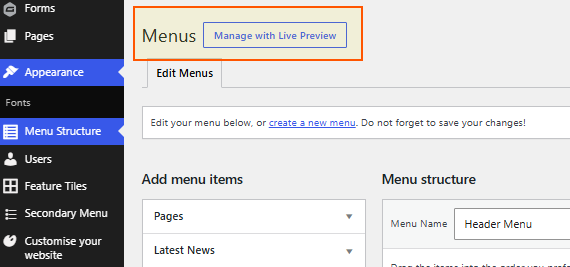
Manage with Live Preview
You can also select Manage with Live Preview at the top of the Menus page.
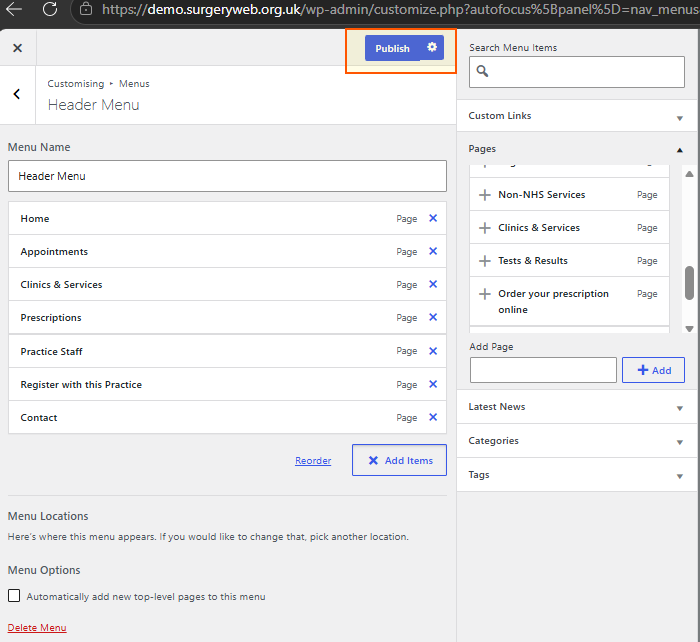
This opens a preview of your website alongside the menu settings, allowing you to see how your changes will look.
- Make the required changes to your menu.
- Check the website preview.
- Click Publish at the top to save your changes.
Save your changes
Always click Save Menu after making changes.
Your changes will not appear on the website until the menu has been saved.
Important
Do not tick Automatically add new top-level pages to this menu unless you specifically want new pages to be added to the Header Menu automatically.
Was this helpful? Give it a thumbs up!