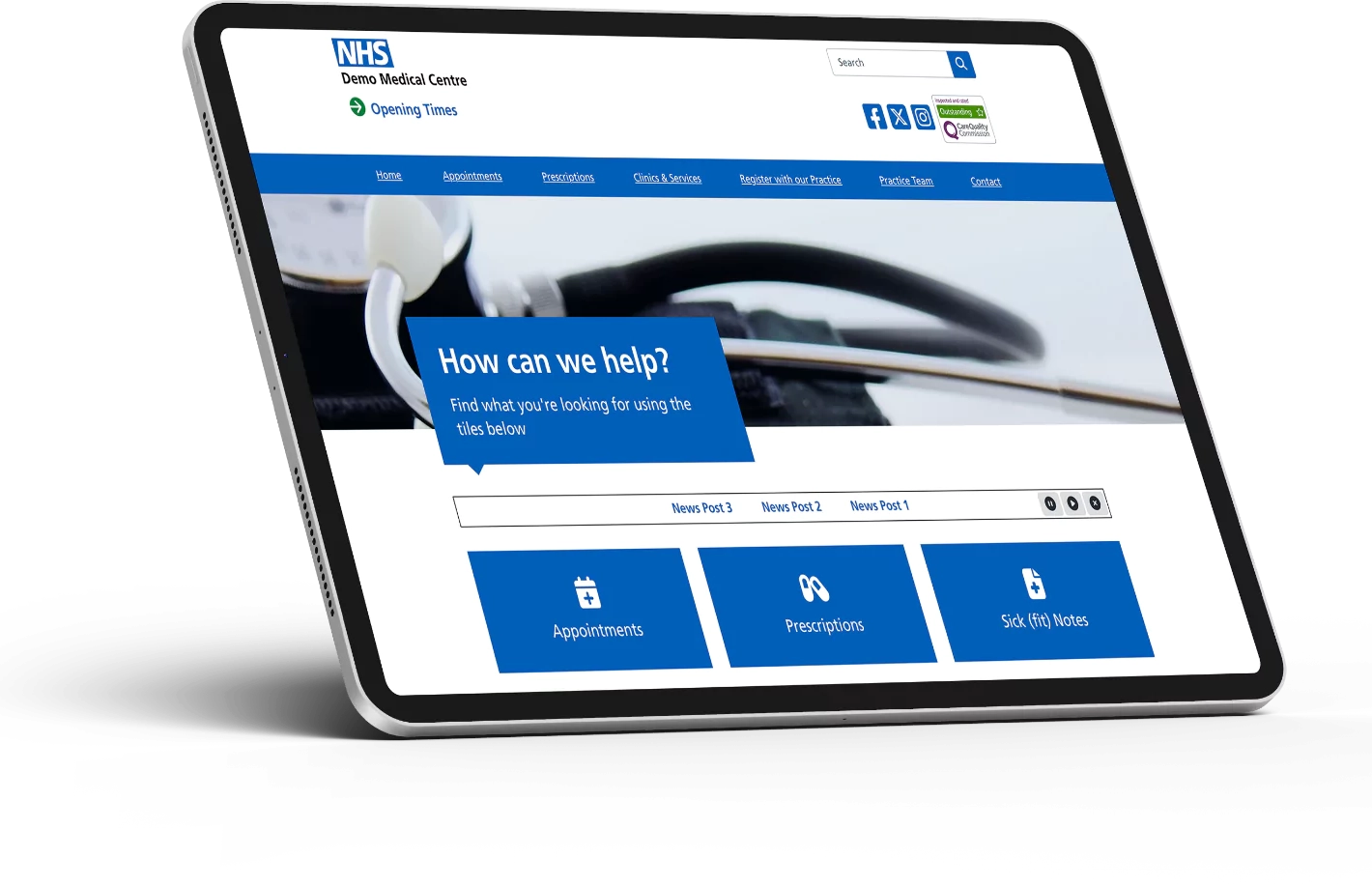
SurgeryWeb Support Centre
Opening Times
The Opening Times section allows you to manage your practice’s opening hours, including lunch closures, bank holidays and training or meeting closures.
How to access Opening Times
- Log in to your website dashboard.
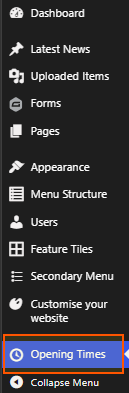
- From the left-hand menu, click Opening Times.
- The Practice Opening Times page will open.
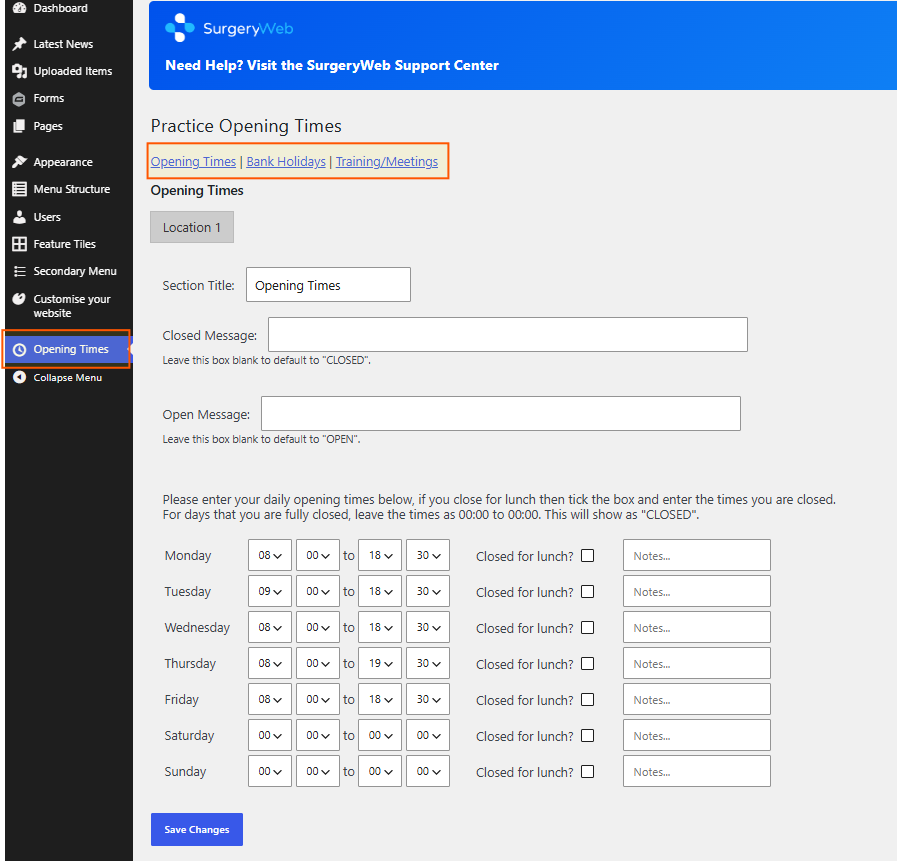
At the top of the Practice Opening Times page, you will see these three sections:
Opening Times
Select your practice location
- Click the relevant location tab, such as Location 1.
- If your practice has multiple locations, select the location you wish to update.
Update the section title and messages
- Section Title – Enter the heading you want displayed for your opening hours, such as Opening Times.
- Closed Message – Enter a custom message to display when your practice is closed, or leave blank to use the default CLOSED.
- Open Message – Enter a custom message to display when your practice is open, or leave blank to use the default OPEN.
Set your daily opening times
- Locate the day you wish to update, from Monday to Sunday.
- Use the dropdown menus to select the opening and closing times.
- Repeat for each day of the week.
- If the practice closes for lunch, tick Closed for lunch? and enter the lunch closure times in the additional fields.
- Use the Notes… field to add any relevant information for that day.
Set a day as closed
- For any day when your practice is fully closed, set both opening and closing times to 00:00.
- This will display the practice as CLOSED for that day.
Save your opening times
- Review the opening hours for each day.
- Click Save Changes at the bottom of the page.
Bank Holidays
The Bank Holidays section allows you to add dates when your practice will be closed for bank holidays or other planned closures.
How to add Bank Holidays
- Go to Opening Times → Bank Holidays.
- Select the relevant location, such as Location 1.
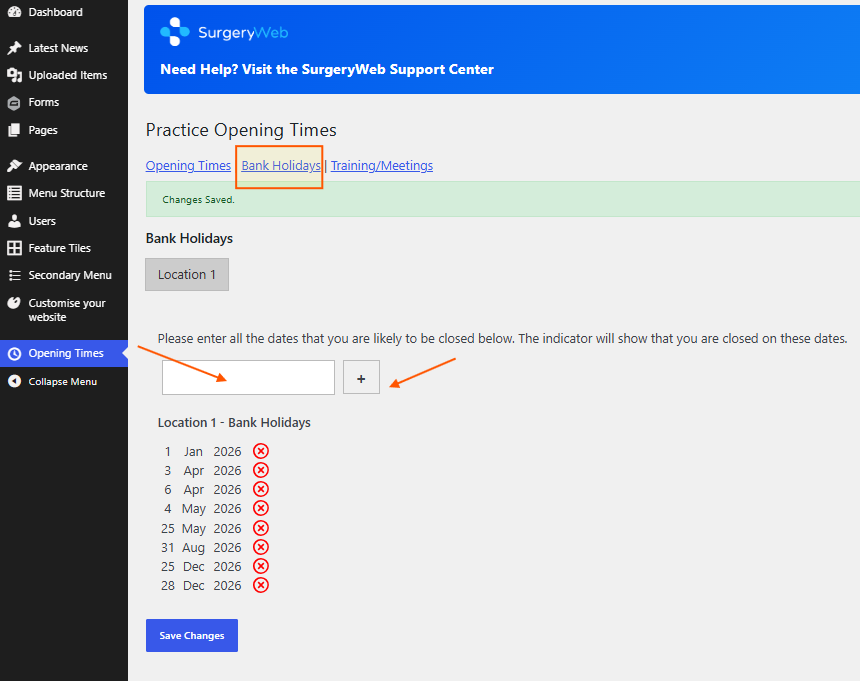
- Click the empty date field to select the bank holiday date.
- Click the + button to add the selected date.
- Repeat the process for any additional bank holidays.
- The added dates will appear in the list under Location 1 – Bank Holidays.
- Click Save Changes to save your changes.
How to remove a date
- Locate the date you wish to remove from the list.
- Click the red X icon next to the date.
- Click Save Changes to save your changes.
Important: Dates added to this section will show your practice as closed on those days. Remember to review and update your bank holiday dates each year.
Training/Meetings
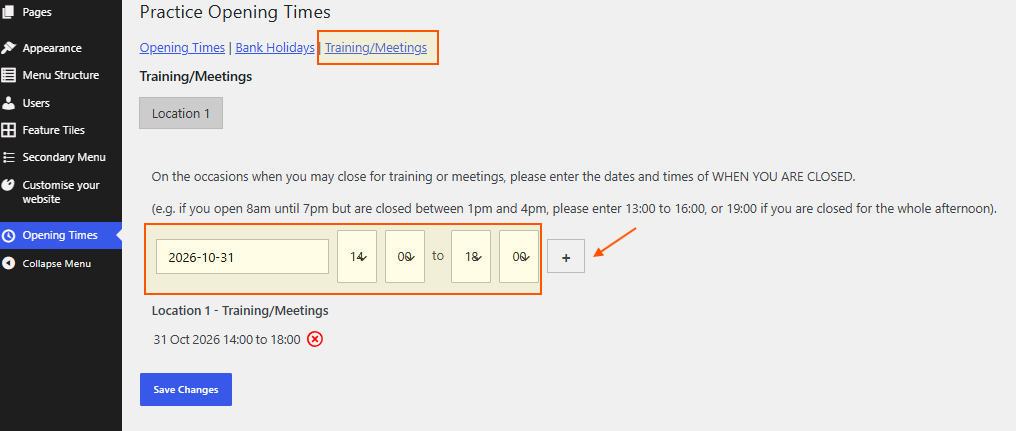
The Training/Meetings section allows you to add dates and times when your practice will be closed for staff training or meetings.
How to add Training/Meeting closures
- Go to Opening Times → Training/Meetings.
- Select the relevant location, such as Location 1.
- Click the date field and select the date of the closure.
- Use the time dropdown menus to enter the start and end times of the closure.
- Click the + button to add the closure.
- Repeat the process for any additional training or meeting dates.
- The added dates and times will appear under Location 1 – Training/Meetings.
- Click Save Changes to save your changes.
How to remove a closure
- Locate the closure you wish to remove from the list.
- Click the red X icon next to the date and time.
- Click Save Changes to save your changes.
Important: Enter the times when your practice is closed, not your normal opening hours. For example, if your practice is open from 08:00 to 19:00 but closes for training from 13:00 to 16:00, enter 13:00 to 16:00.
Was this helpful? Give it a thumbs up!