SurgeryWeb Support Centre
How to Change the Colour Theme
It is possible to change the colour theme of your website but be aware that changing the colour theme from ‘NHS Blue’ will impact scoring on the NHS benchmarking audit.
Using the ‘NHS Blue’ colour theme will score ‘well’ in the NHS benchmarking audit, while changing it to one of the other 13 available colour themes will score ‘adequate’. There is also a custom colour option for you to match your corporate branding but this will score you ‘inadequate’.
The audit recommends the use of ‘NHS Blue’ but you can choose whether to change to an alternative colour for your practice.
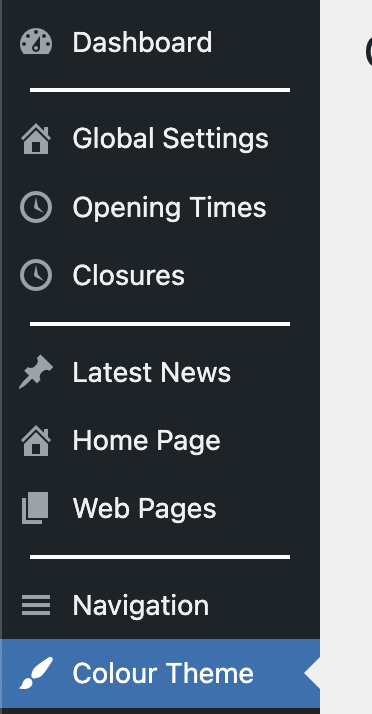
To change the colour theme, navigate to “Colour Theme” from the dashboard.
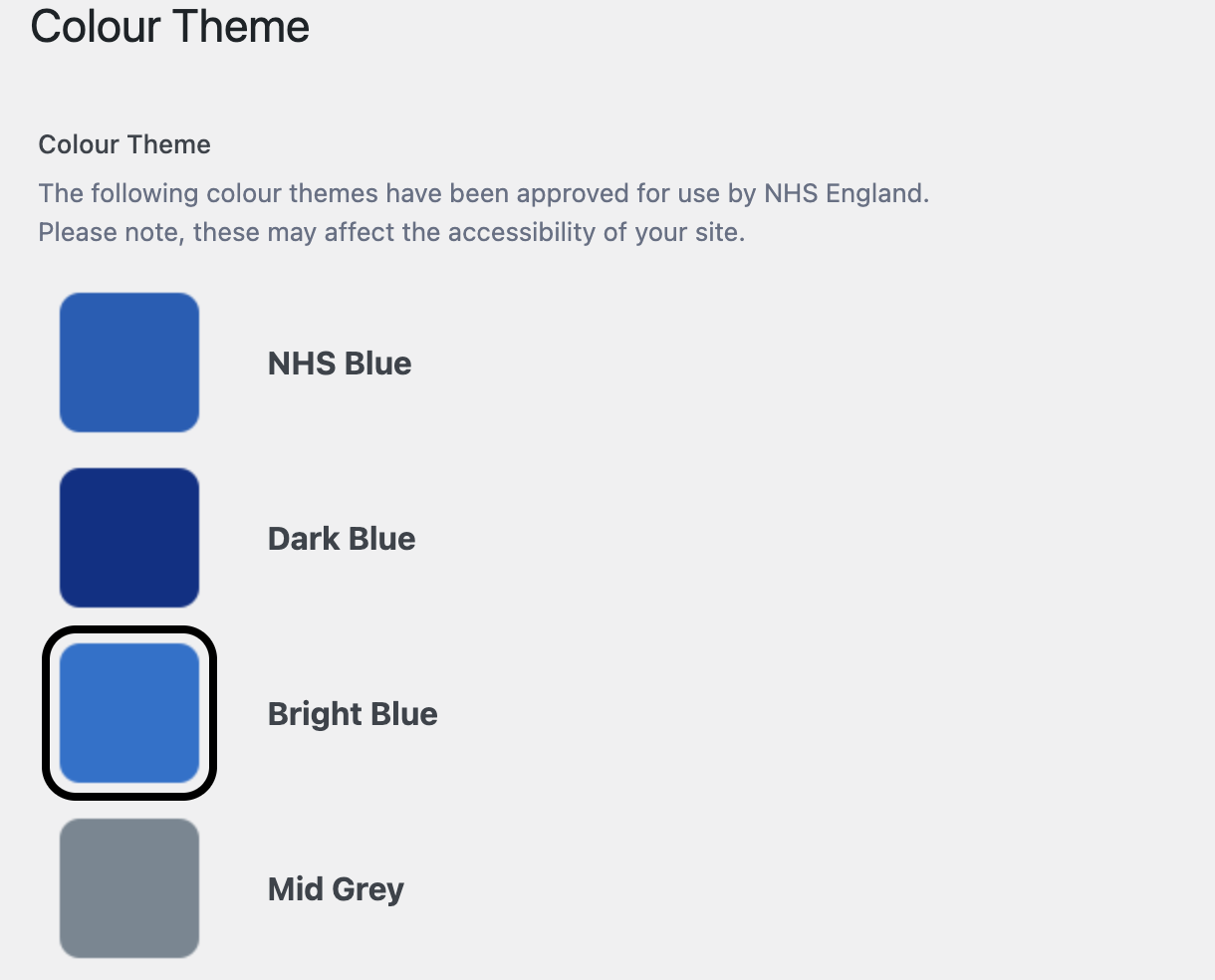
To switch to a different colour, select the colour from the list of 13 colours.
To confirm the colour change, click on the “Update” button in the “Publish” section in the top right of the page. Your website colour theme should now be set to the colour you chose.

Was this helpful? Give it a thumbs up!