
SurgeryWeb Support Centre
Add an Additional Badge/Logo to your Footer
Have you received an accreditation for your Practice? Perhaps you are a Veteran Friendly accredited Practice, or a Purple Star Practice, or even a Safe Surgery, and you want to add the badge to your website.
There is a space in the website footer which can accommodate additional practice logos or badges for this purpose.
Navigate to “Global Settings > Footer” in your dashboard.
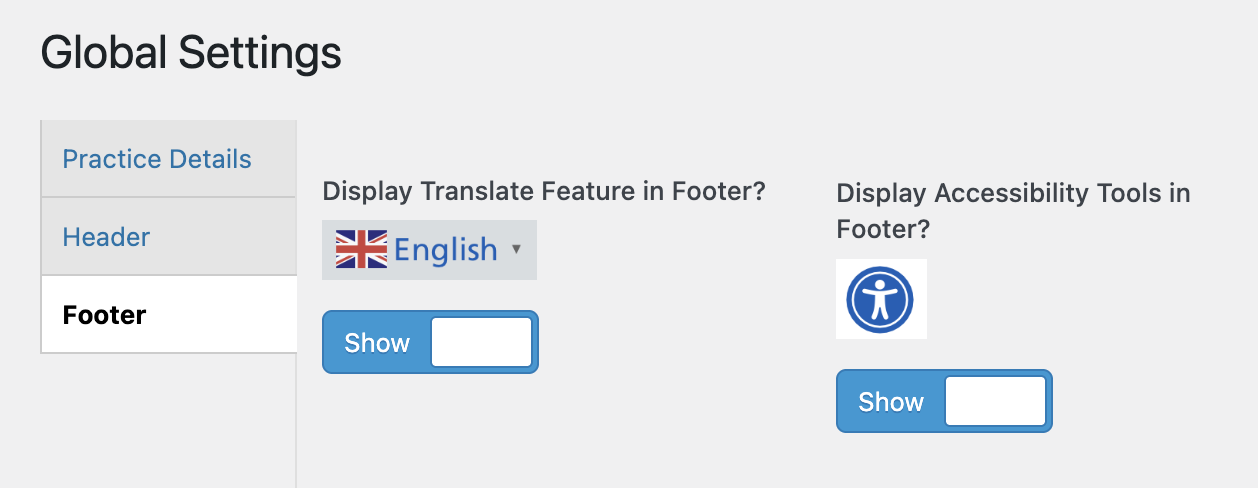
Scroll down to the ‘Accreditations/Logos’ section and click the ‘Add Image’ button to open the Media Library.

You can either select an existing image that you have already uploaded to the Media Library in the ‘Media Library’ tab, or you can use the ‘Upload files’ tab to upload a new image.

Click the blue ‘Select’ button in the bottom right corner of the box to confirm the image you want to use for your footer area.
You can then add a link from the image to an external website. For example, you might want to add a link to the website of the accreditation provider or register.
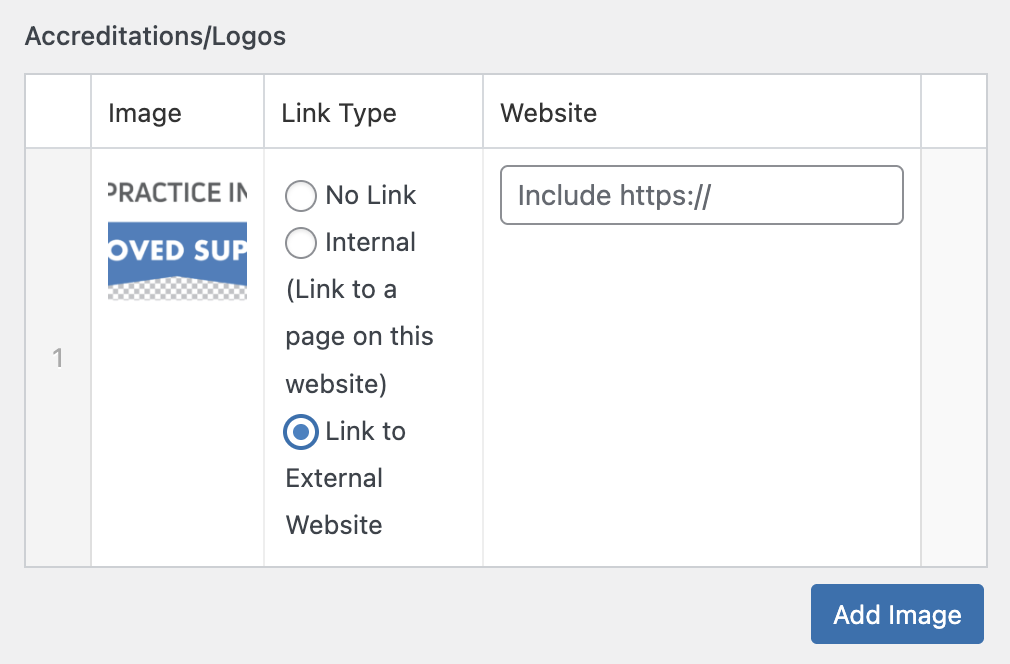
Choose the Link Type using the radio button and add the website link into the box.
If you want to add any more logos or badges, then click the ‘Add Image’ button and do the same again.

Finally click ‘Update’ in the ‘Publish’ section on the right hand side of your settings screen to save your changes. Your image(s) will now be displayed in the footer of your website.

Was this helpful? Give it a thumbs up!