SurgeryWeb Support Centre
How to Add a New Web Page
To add a new web page to your website, you can do this by clicking on ‘Web Pages’ from the left hand menu in the dashboard and then clicking on ‘Add Page’.
Please note: Once you have created the page, you will also need to add it into the Navigation menu so that it is visible to patients on the website menu at the top of the page or in the side menu. The instructions for doing this are detailed at the bottom of this page.
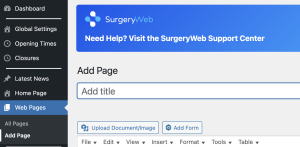
The following screen should be displayed, where you can add the title for your new page and enter your content into the Editor. You can add text, images and forms into the page.
If you want to add images, ensure that you use an acceptable image format (.jpg, .jpeg, .png).
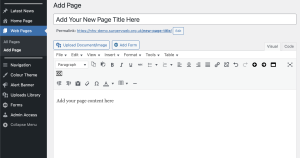
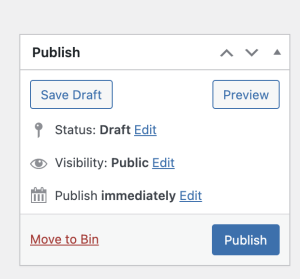
You can click on the ‘Preview’ button to check how the page will appear before you publish it.
Once you are happy with the new content for your page, click on the ‘Publish’ button in the right hand sidebar.
Adding the New Page to the Menu
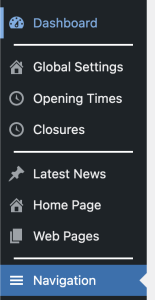
To add the page title so that it displays in the the top menu or side menu of the website, click on ‘Navigation’ from the left hand menu of the dashboard.
To add the page to the top menu, you add this in the ‘Primary Menu’.
To comply with the NHS GP website benchmarking and improvement tool, the menu should have no more than 7 menu items.
If you already have 7 menu items, you can add the page to display in the ‘Additional Information’ in the right hand menu instead, which is under the ‘Secondary Menu’.
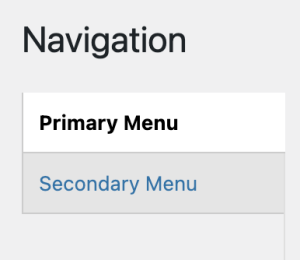
To add the page under the Primary or Secondary menus, select the required menu and scroll to the bottom of the page, where you will see a blank section to add the page title and link. Try to be concise with the page title so it displays neatly.
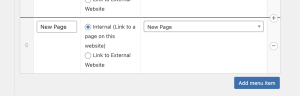
Add the page title into the first box and then use the dropdown function to select the page that you have just created.
Now click on the ‘Add menu item’ button and the page should now appear in the menu you have chosen.
Was this helpful? Give it a thumbs up!