SurgeryWeb Support Centre
How to Change Visibility to Create a Password Protected Page
If you want to change a page’s visibility so that website visitors cannot view it or only people with a password can view it, you can easily do this.
You might want to remove it from public view while you make updates to the page, for example, or it is currently not needed on the website but might be re-published in future.
To change the page visibility, navigate to the relevant page from the ‘Web Pages’ link in the left hand side of the Dashboard and you will see a list of the Web Pages.
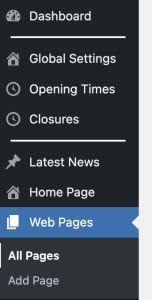
Select the Web Page that you want to password protect or set to private.
In the Publish section on the right hand side, click on ‘Edit’ next to Visibility: Public.
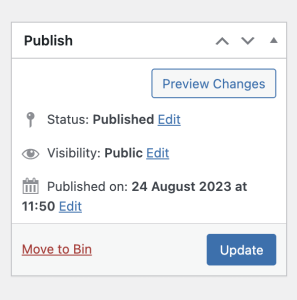
You will now see options to change to Password protected or Private:
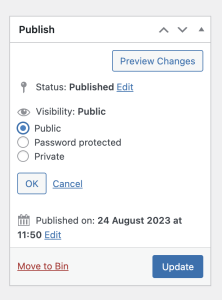
To set the page to Private, select the ‘Private’ radio button, click the ‘OK’ button and you will see it changes to Visibility:Private.
You then need to click on the ‘Update’ button to confirm the changes. Website visitors will no longer be able to view the page.
If you want to make the page password protected so only people with the password can access it, click on the radio button for ‘Password protected’ and enter your chosen password into the Password field.
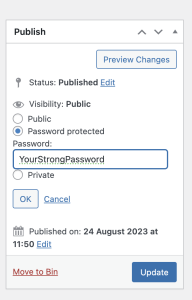
Next, click the ‘OK’ button and then the ‘Update’ button to make the changes.
Was this helpful? Give it a thumbs up!