SurgeryWeb Support Centre
How to Edit the Contact the Practice Page
If you want to make any changes to your ‘Contact the practice’ page, such as updating location or contact details for a second branch, you can do this from the ‘Web Pages’ section on the dashboard.
You can also update the content for the Out of Hours details, Physical accessibility and Complaints information.
To make any changes to these sections of the ‘Contact the practice’ page, navigate to ‘Web Pages’ in the left menu in the dashboard and click ‘All pages’.
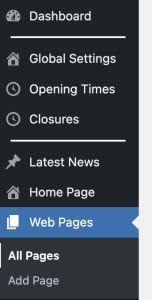
You should then see a list of all the pages. Click on the ‘Contact the practice’ link or click on the ‘Edit’ link underneath the title.

All the sections that you can edit on the page will be shown in the menu on the left.
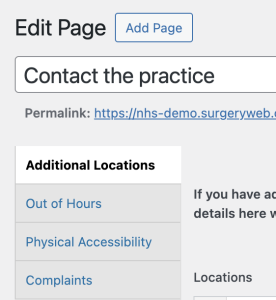
Select the section of the page you need to amend.
Updating Additional Locations
If you have multiple branches, patients using the website will be able to choose the relevant branch from a dropdown to view the contact details for that branch.
To update the location details for another branch, scroll to find the branch and update the relevant details.
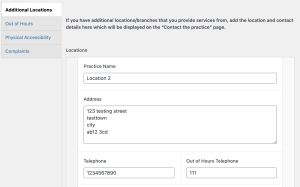
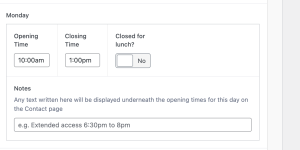
You can also update the opening hours for each branch in the sections below the address and Google Map Iframe.
Adding a New Location
If you want to add another branch’s contact details, you can do this by scrolling to the bottom of the page and clicking on the ‘Add Location’ button. Then add all of the details into the relevant boxes.
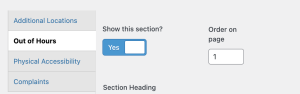
To update any details within the Out of Hours, Physical accessibility and Complaints sections, choose the relevant section in the left hand menu and you can edit the information.
Show/Hide Section and Re-ordering Sections
You also have the option to show the section or to hide it from view by switching the ‘Show this section?’ slide bar to Yes/No.
If you want to change the order that the sections are displayed in, change the number under ‘Order on page’ to the order you want it to be displayed.
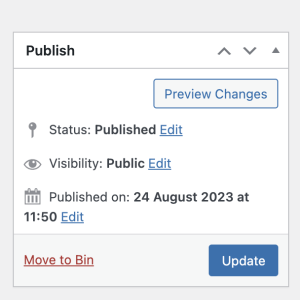
Once you have made the required changes to the content, click on the ‘Update’ button to confirm the changes and the page will be updated.
Was this helpful? Give it a thumbs up!