SurgeryWeb Support Centre
How to Enable and Edit the Alert Banner Message
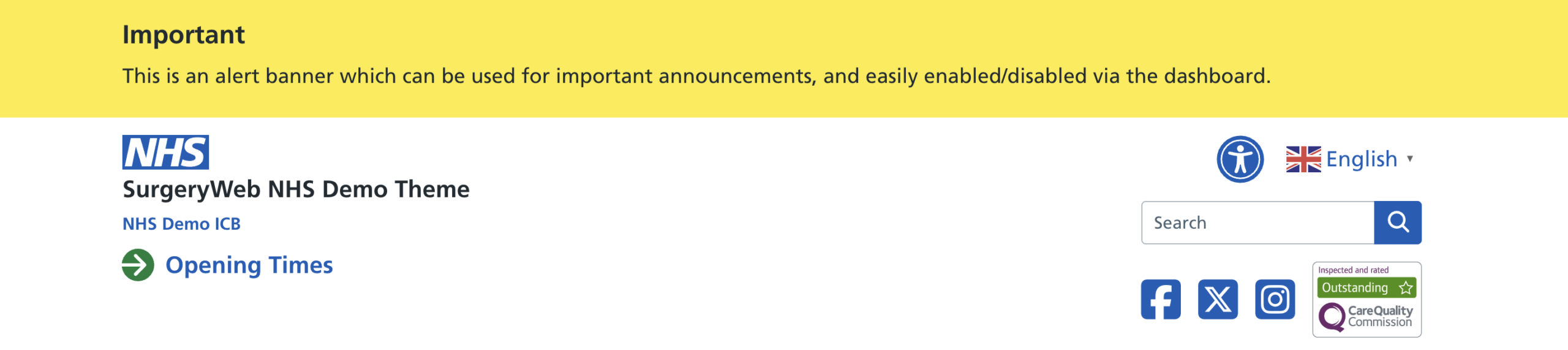
The alert banner on your website can be used to display important messages to patients, such as issues with phone lines being down or the clinical system being offline.
This is located where the yellow banner is displayed in the screenshot above.
You can hide/show the banner or add a new message by navigating to “Alert Banner” on the dashboard.
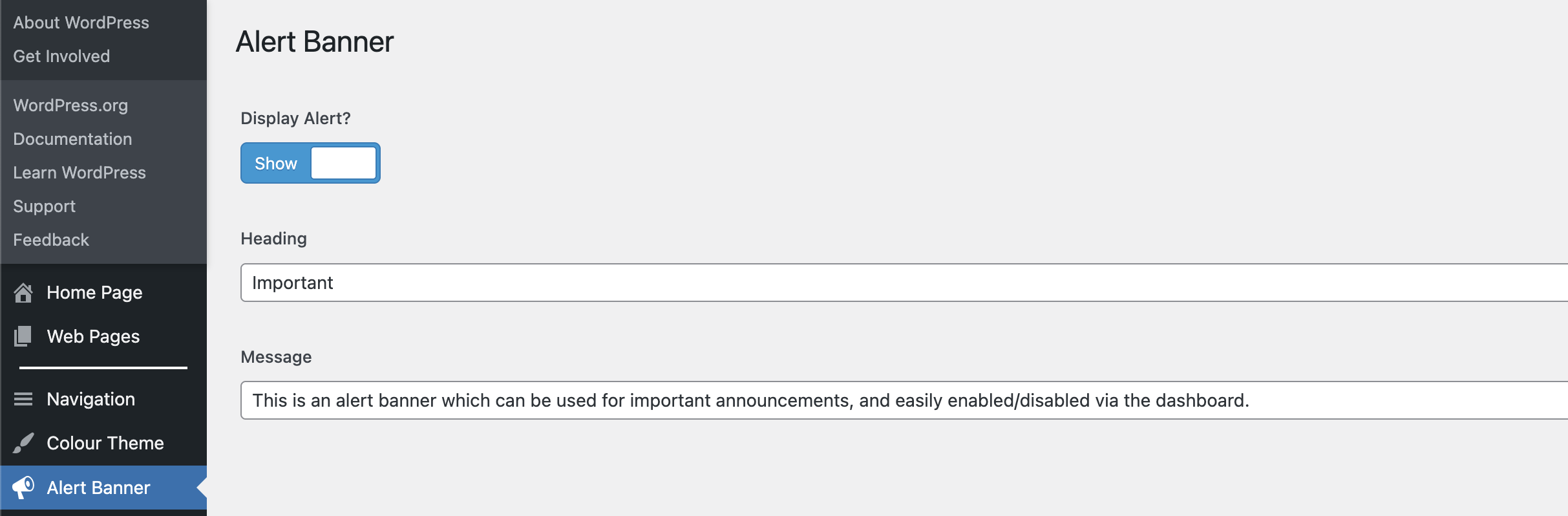
To hide the banner, click on the white button next to ‘Show’.
If you want to add a new message, make sure that the ‘Display Alert?’ button is set to ‘Show’.
Then add your required heading and message into the two boxes.
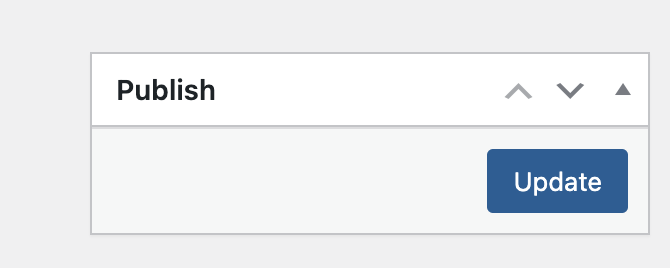
To confirm that you want to update the message in the alert banner, click on the “Update” button in the “Publish” section in the top right of the page. The message should now be displayed at the top of the website.
Was this helpful? Give it a thumbs up!