SurgeryWeb Support Centre
How to Upload an Image or Document
You can add images and upload documents such as pdfs to your web pages or posts by adding the file to the Media Library. For example, you might want to upload a picture into a news post.
To do this, navigate from the dashboard to the page or post you want to add the media file to.
Within the editing box, place the cursor in the position where you want to add the file.
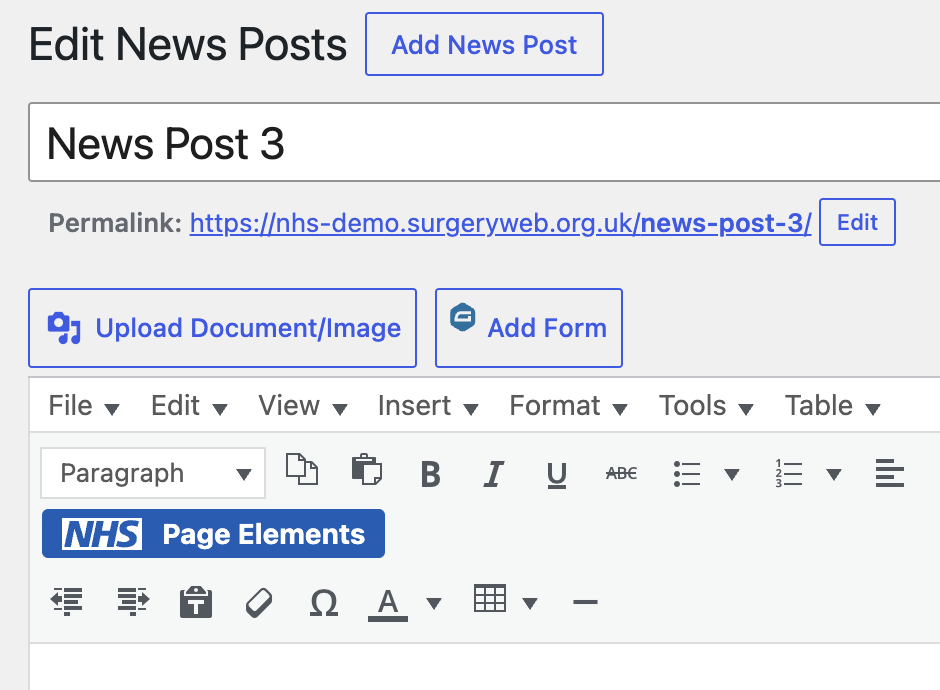
Next, click on the “Upload Document/Image” button displayed above the editing box.
You will now see the page where you can add media. If the file you want to add into the page or post is already in the Media Library, you can insert it by selecting the “Media Library” tab and clicking on your chosen file and then clicking on the “Insert into post” button at the bottom.

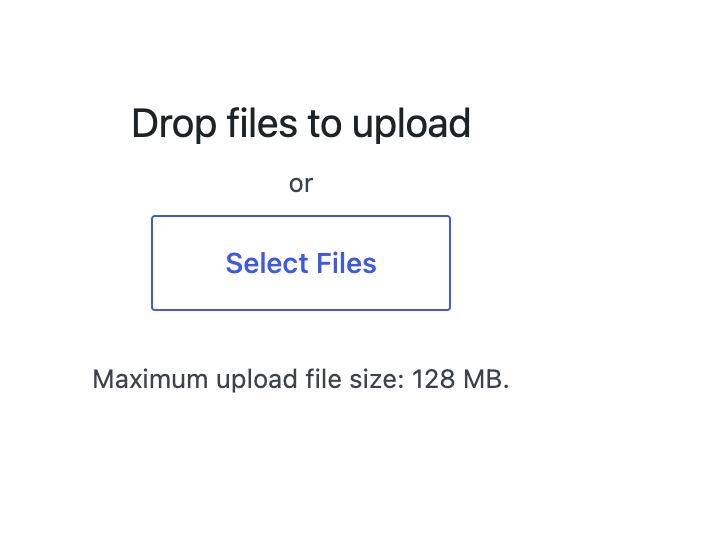
If you want to add a file that is not currently in the Media Library, select the “Upload files” tab instead. You will then be able to select the file that you want to upload by dragging and dropping the file into the highlighted area or by clicking the “Select Files button”.
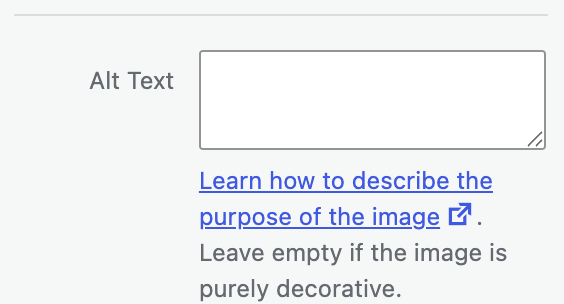
Adding Alt text for images improves digital accessibility for users of screen readers, as they will be provided with a description of an image. You can add a description of the image in the “Alt Text” box.
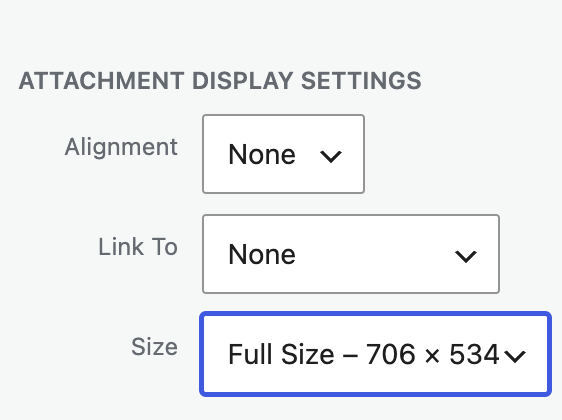
You can also choose the size that you want the image to display as, using the “Size” dropdown option.
Embedding Videos and PDFs
You can embed a video into a web page or post by uploading a video file. This will then embed a WordPress video player so that website visitors can play the video.
If you would like to embed a pdf directly into a page so the content displays within the page rather than by clicking a link, you can do this by converting your pdf file into .jpg format using an online converter. You then upload it in the same way you would upload an image.
Every media file that you upload is given its own URL address, so you can use the URL link to send to patients in communications in future. The File URL is located in the right hand side bar.

Was this helpful? Give it a thumbs up!