SurgeryWeb Support Centre
Warning Callout
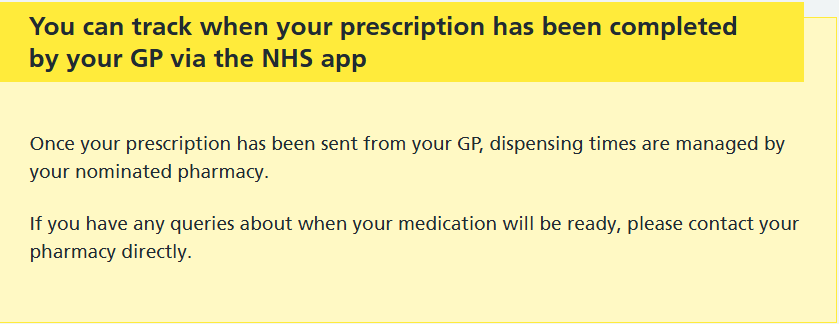
The Warning Callout allows you to highlight important information in a yellow box, helping key messages stand out and making them easier for visitors to notice.
For example, a Warning Callout can be used to explain how patients can track their prescriptions using the NHS App and who to contact if they have any queries.
How to add a Warning Callout
- Open the page you wish to edit.
- Place your cursor where you want the Warning Callout to appear.
- Click NHS Page Elements in the editor toolbar.
- Select Warning Callout.
- Enter your chosen heading, for example, You can track when your prescription has been completed by your GP via the NHS app.
- Click Insert to add the Warning Callout to your page.

How to edit your Warning Callout
Once inserted, the Warning Callout will appear in the editor as a shortcode.
- Heading – You can edit the heading if needed. Make sure you only change the text within the quotation marks (” “).
- Content – Replace Insert content here with your own information. You can include paragraphs, bullet points and links.

Important:
- Keep all your content between the opening and closing Warning Callout shortcodes. Content placed outside these shortcodes will not appear inside the Warning Callout.
- Do not remove the shortcode brackets, quotation marks or field names, as these are required for the Warning Callout to display correctly.
- Click Update to save your changes.
Tip: Warning Callouts are useful for highlighting important reminders, service updates and information patients should be aware of. Use them selectively so important messages remain noticeable.
Was this helpful? Give it a thumbs up!