SurgeryWeb Support Centre
How to Edit the Primary Menu

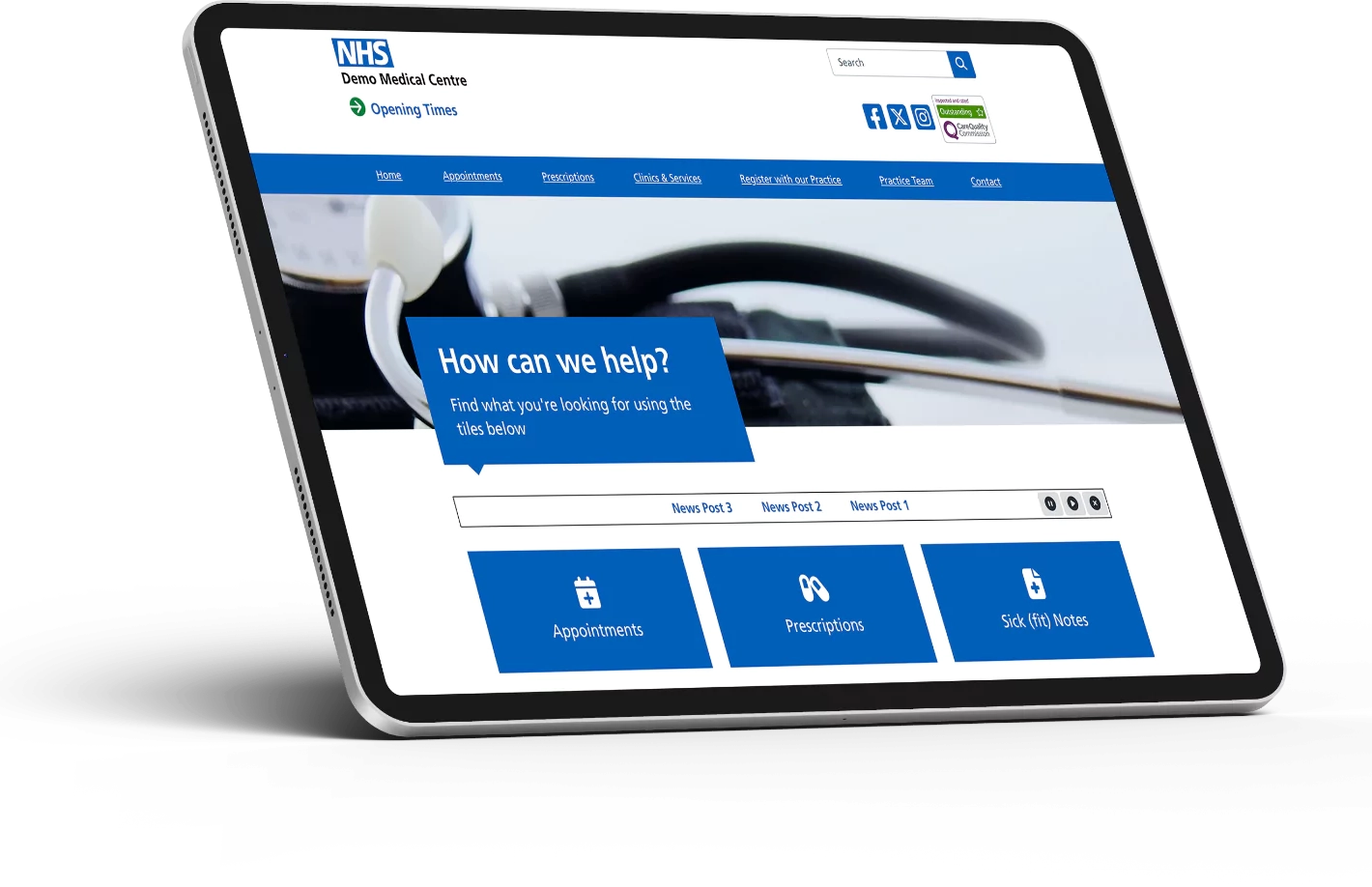
You can make changes to the primary menu that is displayed across the top of your website.
The primary menu is restricted to no more than seven items as this supports scoring ‘well’ on the NHS benchmarking audit. The restriction also supports accessibility so that the menu does not become too crowded and provides clear navigation.
Your website’s primary menu should always include links to Home, Appointments, Prescriptions and a Contact page but the additional three can be set as you require.
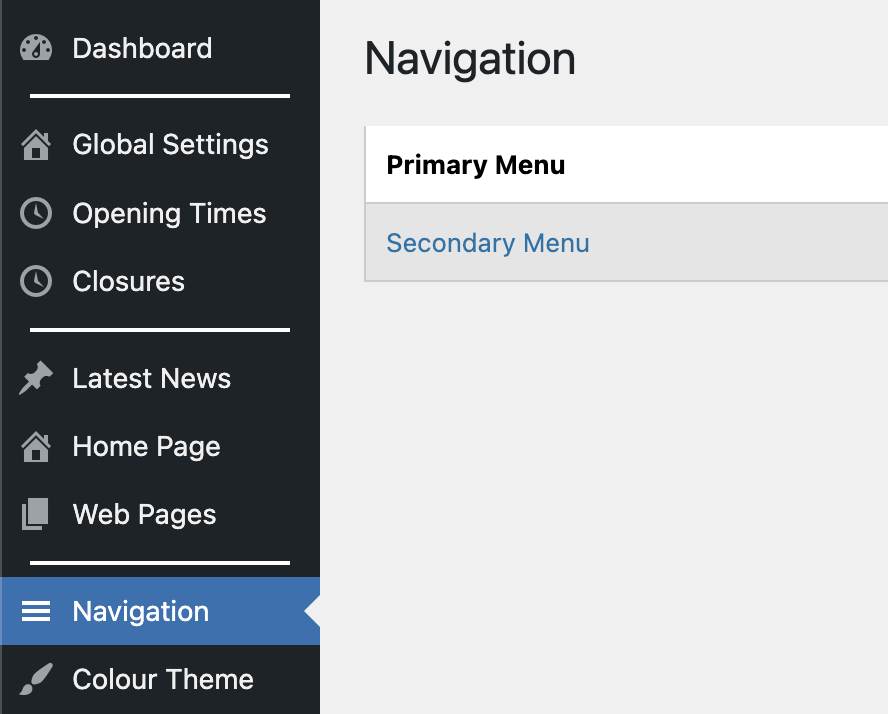
To edit the primary menu, navigate to “Navigation > Primary Menu” from your dashboard.
The current menu items will be displayed.

If you want to change one of the three options that can be edited, you can add a new menu item label by overwriting the existing one and you can also update the link to an internal page of your website or to an external website by selecting the relevant radio buttons.
To change the internal link, make sure that the ‘Internal’ button is selected and click on the arrow on the right hand side to display the list of internal pages and then select the one you want the menu item to link to.
To link to an external website, make sure that the ‘Link to External Website’ button is selected and type or copy the website address into the box on the right, ensuring to include the ‘https://’ part.

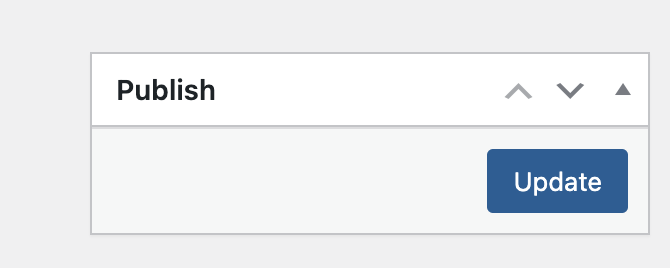
Once you have made the edits you want to make, confirm your changes by clicking the “Update” button in the “Publish” section at the top right of the page.
Was this helpful? Give it a thumbs up!